Dashboard usage.
Once you connect to the ssh server at crocuda.com,
a TUI (terminal user interface) is served right into your terminal emulator.
Menu keyboard navigation.
The application flow is based on directions, like a lot of TUI file managers (yazi, ranger...) and thus should feel very familiar.
-
Q or Ctrl+C to quit.
-
Tab/Tab+Shift to change tab.
-
Left/h and Right/l to navigate menus and submenus.
-
Up/j and Down/k to change selection.
-
Enter to validate.
Set the environment variable to your favourite keyboard layout to enjoy vim bindings.
- KbdLayout="colemak" -> Left/m, Up/n, Down/e, Right/i
- KbdLayout="dvorak" -> Left/h, Up/t, Down/n, Right/s
Virtual machines management.
The Vm tab displays information about your Vms and exposes trivial operations:
- create,
- start or restart,
- stop: shutdown the machine,
- reinit: delete and recreate a machine with same parameters (size and addresses).
- and delete.
And some more to come if you send feature requests.
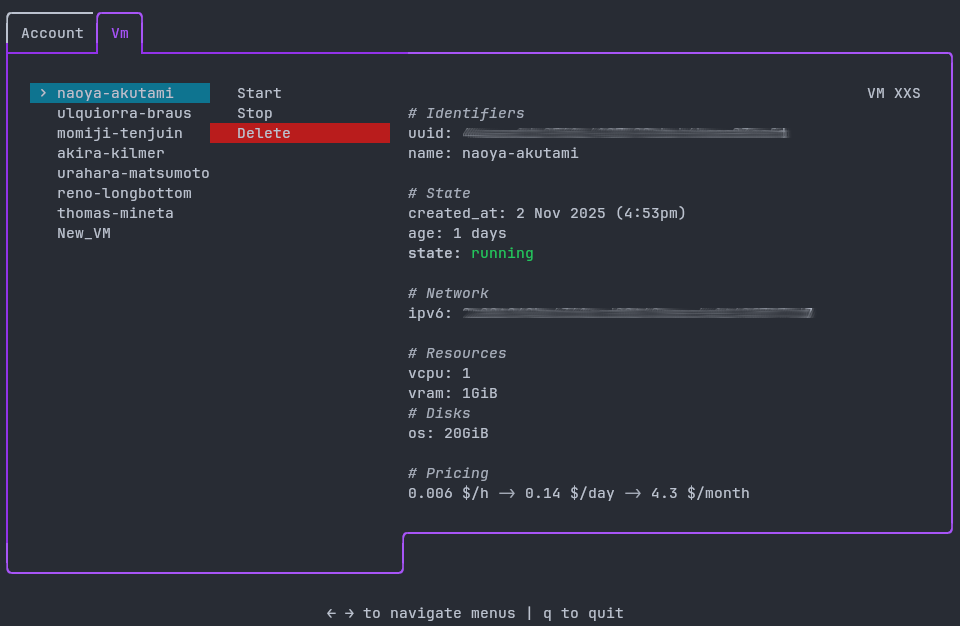
🐣 Create a new VM
You first have to create a new Vm from the available sizes.
New_Vm > Size > Enter
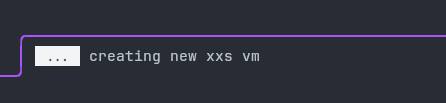
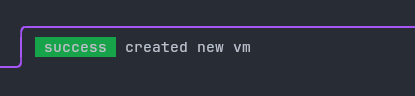
Wait a few seconds until your machine is created, booted and hooked to network.
▶️ Start and Restart (=Reboot)
Staring the VM when it is already running restarts the VM.
⏹️ Stop (=Shutdown)
Stopping a VM, do not stop the billing. You have to delete the VM if you want to stop being billed.
❌ Delete
The notifications area.
You can keep an eye on every VM operation advancement in the bottom right notification area.
User account management.
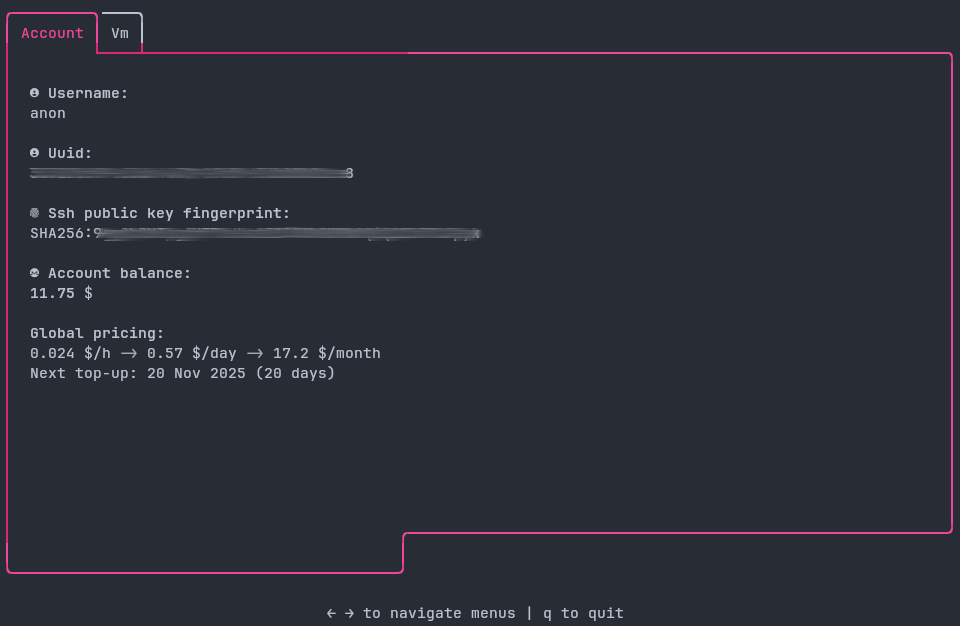
The Account tab displays information about your account, and available cryptocurrencies to top-up your account with.
Available payment methods.
Cryptocurrencies only!
Monero is the encouraged payment method here, because it is the most privacy respecting existing cryptocurrency.
However Bitcoin, Etherum, Solana, USDC(Sol) are also accepted.
Top up your account by sending the needed amount to the addresses associated with your account.
You can although scan the QR codes when using phone wallets. 😉